

Playback Configuration
Once the software has loaded, navigate to Play > Setup > Playback Devices. One of the first things you will need to do before you open the Template is set up a Playback Configuration.
- Click on the “New” button. A new configuration will allow you to add other devices if needed.
- Name the new configuration to suit your liking.
- Activate Sibelius Player. Select the SE6 SoundSet 6.0a sound set from the “Sound Set” drop down menu. Save the configuration.
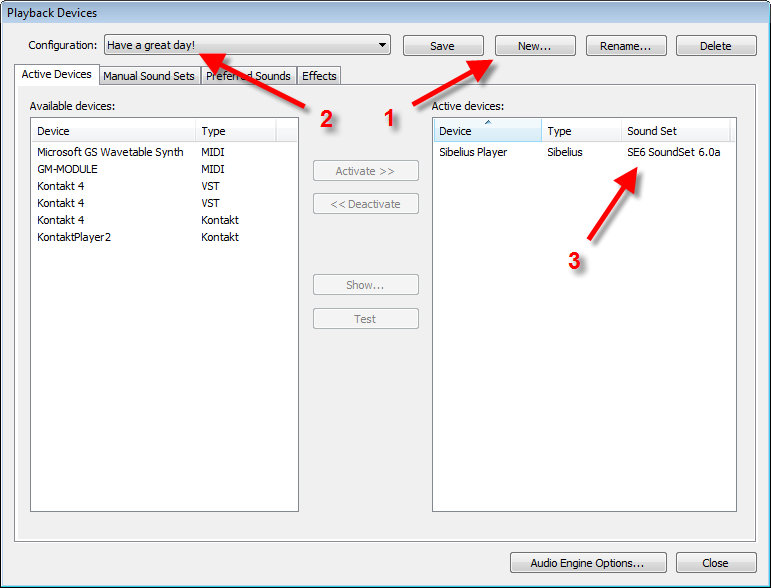
In order to help you find the required sound set in the Sound Set drop down menu, we modified the name in regards to how it will show up in Sibelius. Be sure to select and assign the sound set labeled “SE6 SoundSet 6.0a”.
The one instance of Sibelius Player that is available can accommodate up to 128 instruments. The default setting in Preferences for the number if instruments that can be loaded into it will vary depending on how much RAM you have in your computer. If have only 2 GB of memory, it will probably default to a limit of 64 instruments. And you’ll more than likely run out of available memory before you run out of available slots, even when using Sibelius in 64-bit mode.
Using Multiple Libraries
When using more than one template from The Write Score, you will likely need to have your configuration setup a little differently than described above. For an example of what it would need to look like, please read the Post-Merge Checklist / Playback Configuration section in Appendix D.
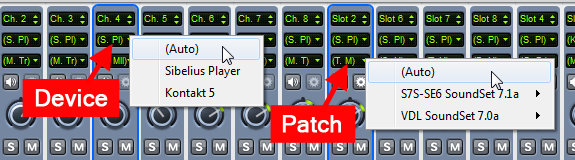
IMPORTANT: For the best results, each instrument that you use from this Template should have their Device and Patch assignments in the Mixer both set to (Auto). The custom instrument definitions and sound set will do all of the correct patch loading for you. (The Sib 6 Mixer looks different, but the same applies to it as well.) You shouldn’t ever need to manually set them to (auto) as this is the state that Sibelius gives each staff by default.
RECAP:
- You’re running Sibelius 6.2
- You’re running the Sibelius Sounds Essentials library (Sibelius Player version)
- You’ve installed the SE6 sound set (“SE6 SoundSet 6.0a”)
- You’ve created a playback configuration that will use this new sound set.
With the above steps completed, it’s time to open up the Template and get working!